
Veo 3 in Google AI Studio: Limits, Free Access, and Prompt Workflow
Learn how Veo 3 works in Google AI Studio, what free access really means, the key limits, and a prompt workflow that avoids wasted generations.
Emma Chen · 19 min read · Apr 28, 2026
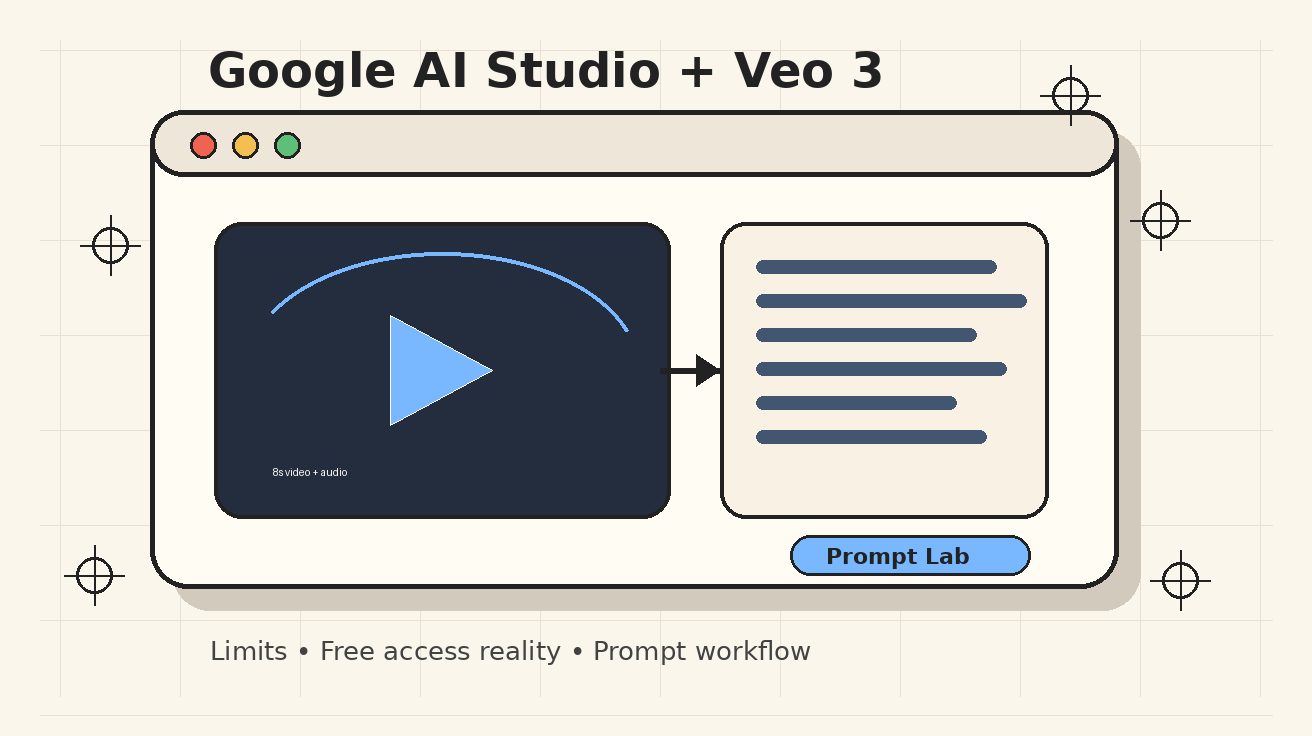
Veo 3 in Google AI Studio: Limits, Free Access, and Prompt Workflow
If you searched for Google AI Studio Veo 3, you are probably trying to answer three practical questions before spending credits: can I use Veo 3 in AI Studio, is there any real free access, and what prompt workflow gives the best results without burning through failed generations? This guide gives you the creator-focused answer.
The short version: Google AI Studio is the fastest place to explore Google’s Gemini developer tools and model pages, and Veo 3 / Veo 3 Fast are documented as Gemini API video models. However, Google’s official pricing page lists Veo 3 as available on the paid tier of the Gemini API, with the free tier marked as not available for the Veo 3 video generation price. That means “free Veo 3 in AI Studio” should be treated carefully: you may see trial access, region-based experiments, Google AI plan benefits, or UI demos, but you should not build a production workflow assuming unlimited free Veo 3 generations.
This article walks through the limits that matter, how to use AI Studio as a prompt lab, when to choose standard Veo 3 versus Veo 3 Fast, and a repeatable workflow for drafting prompts before you click generate. If you are comparing broader access options, also read our guides to Veo 3 free credits, Google Veo 3 pricing, and the Veo 3 AI video generator complete guide.
What Google AI Studio is for Veo 3
Google AI Studio is a web workspace for experimenting with Gemini models, prompts, API keys, and small prototype apps. For text and multimodal Gemini models, many creators use it as a lightweight playground: write a prompt, test model behavior, save the pattern, then move the final workflow into an app or API script.
For Veo 3, AI Studio is best understood as a developer-facing prompt and model entry point, not a consumer social video editor. The model page and related Gemini API documentation help you understand available model names, input modes, pricing, and configuration limits. Depending on your account and region, you may see model pages, demos, or paid-key flows rather than a simple “generate unlimited videos for free” button.
That difference matters. Veo 3 is expensive relative to text generation because every request produces several seconds of video with synchronized audio. A vague prompt can waste real money or scarce trial quota. A good AI Studio workflow therefore starts before generation: define the shot, convert the idea into a structured prompt, check duration and aspect ratio, then generate only the strongest version.
Is Veo 3 free in Google AI Studio?
The safest answer is: AI Studio can be free to open and use for many Gemini experiments, but Veo 3 video generation itself should be treated as paid-tier or quota-limited access. Google’s Gemini API pricing page lists Veo 3 and Veo 3 Fast as paid-tier video models. For Veo 3 Standard, the public price shown is per second of generated video with audio; Veo 3 Fast is cheaper per second, with different resolution pricing. The same pricing table marks the free tier for Veo 3 video generation as “not available.”
So why do people still search for “Google AI Studio Veo 3 free”? Because there are several adjacent access paths that can feel like free access:
- AI Studio exploration: You can visit model pages, read docs, prototype prompts, and manage API keys without paying just to browse.
- Trial credits or account experiments: Some Google accounts, regions, or promotional periods may receive limited credits or temporary access. These change often.
- Gemini / Google AI plan benefits: Consumer plans sometimes include limited access to video features in Google’s creative tools, but the limits differ from Gemini API billing.
- Demos and shared apps: AI Studio Build apps may let a user run a limited demo flow, but the quota source and availability can vary.
Do not confuse these with a stable free production tier. If you plan to make client ads, YouTube Shorts, product demos, or localization batches, assume you need a paid setup or a strict quota budget.
Veo 3 limits that matter in AI Studio and Gemini API
The limits below are the ones creators should design around. They may change as Google updates Veo, Veo Fast, and Veo 3.1, so treat them as a working checklist rather than permanent law.
1. Output duration is short by design
Veo clips are designed around short segments. Google’s documentation for the newer Veo family lists clip lengths such as 4, 6, and 8 seconds for many configurations, with 8 seconds required in some higher-resolution or reference-based cases. Veo 3 stable documentation has historically centered on short clips as well. This means you should not prompt Veo 3 as if it will produce a complete 60-second ad in one shot.
The better workflow is to plan a scene as a sequence of 4–8 second shots:
- Hook shot: establish the situation.
- Product or action shot: show the key motion.
- Detail shot: focus on texture, interface, or emotional beat.
- End card or transition shot: leave room for editing and text overlay.
This storyboard-first method gives you more control and makes failures less costly.
2. One video per request is common
Veo 3 model tables list one output video per request for the stable Veo 3 and Veo 3 Fast Gemini API models. That is very different from image models where you may request multiple variations in one call. For video, every generation should be treated as a high-value attempt.
Before generating, ask: would I be comfortable spending one full request on this exact prompt? If not, refine it with Gemini or a text model first.
3. Prompt input is limited
Google’s model tables list a text input limit around 1,024 tokens for Veo 3 and related video models. You do not need a giant script. You need a compact, specific shot description. The best prompts usually fit in 80–180 words, with separate clauses for camera, subject, action, environment, style, and audio.
A bloated prompt can create contradictions. For example, “static tripod shot” and “fast drone orbit” in the same prompt gives the model competing instructions. Keep one main camera move, one main action, and one sound direction per clip.
4. Resolution and aspect ratio affect cost and availability
Veo 3 and Veo 3 Fast support video with audio, and newer Veo documentation discusses 720p, 1080p, and higher-resolution options depending on model and configuration. In practical creator workflows, 720p is usually enough for ideation, while 1080p is better for final assets. Vertical 9:16 is important for TikTok, Reels, and Shorts; 16:9 remains better for YouTube, landing pages, and product demos.
If you are testing in AI Studio or through an API key, start with the cheapest acceptable configuration. Upgrade resolution only after the motion, subject, and timing are correct.
5. Region and person-generation rules can restrict outputs
Video generation involving people has stricter rules than landscapes or products. Google documentation notes regional limitations for person generation settings in some locations, especially in EU, UK, Switzerland, and MENA contexts. Even when a prompt is harmless, a request can be blocked or adjusted if it conflicts with safety or regional policy.
For predictable results, avoid prompts that require celebrity likenesses, real public figures, minors, medical claims, political persuasion, or sexualized content. Use fictional characters described by role, age range, wardrobe, and mood instead.
6. Latency is not instant
Veo generation can take seconds to minutes, especially during peak hours. That latency changes the workflow. Instead of sitting and tweaking randomly, keep a prompt log: prompt version, model, aspect ratio, duration, result score, what failed, and next edit. A simple spreadsheet can save more credits than any prompt hack.
Standard Veo 3 vs Veo 3 Fast
For most creators, the choice is not “best model always.” It is “right model for the stage of work.”
Use Veo 3 Fast when you are exploring concepts, testing camera movement, comparing visual styles, or generating multiple candidate shots for a rough storyboard. The lower cost makes it better for iteration. If a prompt fails because the action is unclear, you want that lesson cheaply.
Use Veo 3 Standard when the prompt has already survived testing and you need the best possible final shot. Standard is the better choice for hero visuals, product scenes, polished ads, cinematic character moments, and clips where synchronized audio matters.
A practical budget workflow looks like this:
| Stage | Recommended model | Goal | Output standard |
|---|---|---|---|
| Idea exploration | Text Gemini model | Expand the concept into 5 shot options | No video yet |
| Prompt rehearsal | Veo 3 Fast | Test motion, framing, and scene logic | Accept rough artifacts |
| Final generation | Veo 3 Standard | Produce the best take | Use only refined prompts |
| Editing | Video editor | Add captions, music, cuts, CTA | Final deliverable |
This keeps AI Studio from becoming a slot machine. You are not paying to discover the idea; you are paying to render the strongest shot.
A repeatable Google AI Studio Veo 3 prompt workflow
Here is the workflow I recommend for anyone using Google AI Studio as a Veo 3 prompt lab.
Step 1: Define the job of the clip
Do not start with aesthetics. Start with function. Choose one job:
- Stop the scroll in a social feed.
- Explain a product benefit.
- Show a before-and-after transformation.
- Create a cinematic B-roll shot.
- Establish a scene for a longer story.
- Demonstrate an app or workflow.
If the clip has two jobs, split it into two clips. Veo performs better when one shot has one purpose.
Step 2: Write a one-sentence shot brief
A shot brief is not the final prompt. It is the creative contract.
Example:
A vertical 8-second product demo shot showing a designer turning a rough sketch into a polished AI video storyboard on a laptop, with warm studio lighting and gentle keyboard sounds.
This brief already defines aspect ratio, duration, subject, action, environment, style, and audio. If your brief cannot fit in one sentence, your clip may be too complicated.
Step 3: Convert the brief into a structured Veo prompt
Use this formula:
Camera + subject + action + environment + style + audio + constraints
For example:
Vertical 9:16, 8-second cinematic close-up. A freelance designer sits at a clean wooden desk, turning a rough pencil storyboard into a polished AI video sequence on a laptop. The camera slowly pushes in from over the shoulder to the screen as panels become more organized and colorful. Warm morning studio light, soft shadows, realistic hands, modern creator workspace. Audio: quiet keyboard taps, soft room tone, subtle page flip. No text overlays, no logos, no distorted fingers.
This is much stronger than “make a cool AI video workflow.” It gives Veo a shot to direct.
Step 4: Ask Gemini to critique before generating
Before spending a video request, paste the prompt into a text model and ask:
Identify contradictions, missing visual details, and anything that may be too complex for an 8-second Veo 3 generation. Rewrite it as a concise video prompt under 150 words.
This pre-flight check often catches problems such as too many actions, conflicting camera moves, unclear subjects, or text that will render poorly.
Step 5: Generate a low-risk version first
If you have access to Veo 3 Fast, use it for the first attempt. Keep the initial generation close to the prompt. Do not change five variables at once. If the result fails, classify the failure:
- Subject wrong: add clearer subject descriptors.
- Motion wrong: simplify action and camera movement.
- Style wrong: move style words earlier in the prompt.
- Audio wrong: use explicit labels such as “Audio:” and “SFX:”.
- Composition wrong: specify close-up, wide shot, overhead, or POV.
- Timing wrong: reduce the number of beats in the clip.
Step 6: Lock the winning structure
Once a Fast generation shows the right scene logic, lock the structure and change only the quality layer. Move to Standard, adjust resolution if needed, and remove experimental phrases. Final prompts should be calmer, not longer.
Step 7: Edit outside Veo
Do not ask Veo to do everything. Captions, logos, precise typography, pricing claims, UI overlays, legal disclaimers, and end cards are usually better added in a video editor. Veo should generate the footage. Your editor should finish the communication.
Prompt examples for Google AI Studio Veo 3
Use these as starting points. Replace brand names, claims, and UI details with your own assets.
Prompt 1: SaaS product launch B-roll
16:9, 8-second cinematic office shot. A product marketer reviews a new AI dashboard on a large monitor while sticky notes and a storyboard are visible on the desk. Slow lateral dolly from left to right, shallow depth of field, realistic hands, crisp modern interface shapes without readable text. Bright startup office, natural daylight, calm confident mood. Audio: soft keyboard taps, low office ambience, subtle notification chime. No logos, no legible text, no exaggerated gestures.
Use this when you need landing-page hero footage or a YouTube intro. If AI-generated UI text looks messy, blur the screen in editing and overlay real UI later.
Prompt 2: Vertical social hook
Vertical 9:16, 6-second high-energy close-up. A creator places three messy sticky notes on a desk, and they transform into a clean three-shot video storyboard. Quick top-down camera move, bright colorful studio lighting, tactile paper texture, fast but readable motion. Audio: paper taps, soft whoosh during transformation, upbeat room tone. No on-screen text, no logos, no extra hands.
This works for TikTok or Reels because the action is simple, visual, and contained.
Prompt 3: Founder announcement scene
16:9, 8-second medium shot. A fictional startup founder stands in a small studio beside a laptop and calmly gestures toward a projected video timeline on the wall. The camera slowly pushes in, confident documentary style, clean background, soft key light, realistic facial expression. Dialogue: the founder says, “This is the first draft, not the final cut.” Audio: natural voice, quiet studio ambience. No brand logos, no captions, no celebrity likeness.
For dialogue, keep the spoken line short. Long dialogue increases the chance of mismatch.
Prompt 4: Product texture macro
16:9, 4-second macro shot. A matte black camera lens rotates slowly on a clean table as reflections reveal soft blue studio lights. Extreme close-up, shallow depth of field, premium commercial style, smooth controlled motion, crisp edges, no fingerprints. Audio: subtle mechanical click, quiet studio hum. No text, no logo, no human hands.
Product texture shots are often easier than complex human scenes and are useful between story beats.
Prompt 5: Educational explainer scene
16:9, 8-second animated-realistic hybrid. A simple timeline made of floating cards appears above a desk: idea, prompt, generation, edit, publish. The camera glides forward through the cards as they arrange into a clean production pipeline. Soft gradient background, modern educational style, readable shapes but no actual text. Audio: gentle UI clicks and a smooth transition sound.
If you need exact words on cards, add them later in editing.
How to avoid wasting Veo 3 credits
The biggest cost problem is not the official price. It is uncontrolled iteration. Here are the rules I would use before every generation.
Keep a prompt budget
Decide how many attempts a clip deserves before you start. For example:
- Test prompt: 1 Fast attempt.
- Important social clip: 2 Fast attempts + 1 Standard attempt.
- Client hero shot: 3 Fast attempts + 2 Standard attempts.
If you exceed the budget, stop and rewrite the concept. More attempts on a broken prompt rarely fix the underlying problem.
Use negative constraints sparingly
Negative prompts can help, but long “no this, no that” lists can confuse the model. Use only the constraints that matter most: no logos, no text, no extra fingers, no celebrity likeness, no shaky camera, no distorted face. Positive direction is usually more powerful than a wall of negatives.
Avoid exact text inside the video
AI video models still struggle with precise typography. If your clip needs a product name, pricing line, CTA, disclaimer, or feature list, generate a clean background or screen-like surface and add the text in post-production.
Make audio intentional
Veo 3’s major advantage over older silent models is native audio. But “cinematic audio” is vague. Describe the soundstage:
- Ambient noise: quiet cafe, studio room tone, city traffic behind glass.
- SFX: keyboard taps, paper slide, camera shutter, soft whoosh.
- Dialogue: one short sentence in quotation marks.
- Music: subtle, non-distracting, mood-based.
Do not ask for a full song, a long script, and precise lip sync in a tiny clip. Pick one audio priority.
Build scenes from reusable ingredients
For a multi-clip campaign, create a style bible:
- Character description.
- Wardrobe.
- Lighting.
- Lens and camera language.
- Color palette.
- Environment details.
- Audio mood.
Paste the relevant parts into each prompt. This improves consistency and makes your AI Studio prompt history easier to audit.
Best use cases for Veo 3 in AI Studio
Veo 3 is strongest when the clip can be judged visually and does not depend on exact text. Good use cases include:
- Product launch B-roll.
- Social ad hooks.
- Cinematic concept shots.
- Fictional customer story scenes.
- Mood films and brand atmosphere.
- App workflow metaphors.
- Background footage for explainers.
- Storyboard previsualization.
Weaker use cases include:
- Exact UI tutorials with readable labels.
- Long training videos.
- Legal or medical advice clips.
- Celebrity or public figure scenes.
- Precise charts and numbers.
- Videos requiring perfect brand typography.
For those, use Veo for footage and finish the information layer manually.
Troubleshooting common Google AI Studio Veo 3 issues
“I cannot find a free Veo 3 generate button.”
That may be normal. Veo 3 API video generation is listed as paid-tier access. Check whether your Google account, region, billing project, and AI Studio interface expose the model. If not, you may need a paid Gemini API setup or a different Google video product path.
“My prompt is blocked.”
Remove real-person likenesses, risky claims, political persuasion, sexualized content, minors, and ambiguous identity references. Use fictional roles and safe environments. If the prompt involves people, keep it ordinary, adult, and non-sensitive.
“The scene looks good, but the hands or face are wrong.”
Simplify the shot. Move from close-up hands to over-the-shoulder, from front-facing dialogue to profile, or from human action to product/object motion. Increase realism cues, but do not overload the prompt.
“The audio does not match.”
Shorten dialogue and separate audio instructions. Try: “Audio: natural room tone, keyboard taps, one short spoken line: ‘Let’s render the final shot.’” Avoid multiple speakers unless the scene requires it.
“The result ignores my camera movement.”
Put camera language first. Instead of burying “slow dolly” near the end, start with “Slow dolly-in medium shot” or “Top-down locked camera.” Use one camera move per clip.
Recommended workflow for a 30-second video
Because Veo 3 is clip-based, a 30-second deliverable should be assembled from multiple shots. Here is a simple structure:
- 0–4s hook: vertical or wide visual problem statement.
- 4–12s process: two short shots showing workflow or transformation.
- 12–20s proof: product, result, or emotional payoff.
- 20–26s detail: macro shot, screen metaphor, or user reaction.
- 26–30s CTA background: clean space for text and logo added in editing.
Generate each shot separately. Keep continuity through style, lighting, and subject descriptions. Add captions, logo, and CTA outside Veo. This is more reliable than asking one prompt to create a complete commercial.
FAQ
Can I use Veo 3 in Google AI Studio for free?
You can often use Google AI Studio itself for free exploration, but Google’s public Gemini API pricing lists Veo 3 video generation as paid-tier, with the free tier not available for the Veo 3 video price. Any free access you see should be treated as limited, account-specific, or promotional.
What is the best prompt format for Google AI Studio Veo 3?
Use a structured format: camera, subject, action, environment, style, audio, and constraints. Keep the prompt concise, avoid conflicting camera moves, and define only one main action per clip.
Should I use Veo 3 or Veo 3 Fast?
Use Veo 3 Fast for prompt testing and storyboard iteration. Use standard Veo 3 for final hero shots after the prompt has been refined. This reduces wasted paid generations.
How long can Veo 3 videos be?
Veo workflows are built around short clips, commonly in the 4–8 second range depending on model and configuration. For longer videos, generate multiple shots and edit them together.
Does Veo 3 generate audio?
Yes. Veo 3 is known for generating video with audio. To get better results, describe ambient sound, sound effects, and any short dialogue explicitly.
Why does AI Studio ask for billing or an API key?
Veo 3 video generation is a paid-tier Gemini API capability. AI Studio can help you select a Google Cloud project and key for paid usage when the model or app requires it.
Can Veo 3 create exact text, logos, or UI labels?
It is better not to rely on generated video for exact typography. Generate the footage first, then add logos, captions, UI labels, and legal text in editing.
Final recommendation
Use Google AI Studio as a Veo 3 prompt laboratory, not as a place to improvise expensive generations. Confirm your access and billing status, start with a short shot brief, critique the prompt with a text model, test with Veo 3 Fast when available, then reserve standard Veo 3 for final clips. If you want to compare other ways to access Google’s video stack, continue with our guides to Veo 3 free trials, Veo 3 Lite, and Veo 3 image-to-video.
Related Articles
Continue with more blog posts in the same locale.

What is Google Veo 4?
Complete overview of Google Veo 4 AI video generator features, capabilities, and improvements over Veo 3.
Read article
How to Use Google Veo 4
Step-by-step guide to using Google Veo 4 AI video generator. Learn prompts, settings, and best practices for creating stunning AI videos.
Read article
Veo 3.1 vs Runway Gen-4.5: Audio, Physics, and Camera Control Compared
A production-focused Veo 3.1 vs Runway Gen-4.5 comparison across audio, physics, camera control, prompts, pricing, access, and best use cases.
Read article